Reports & printouts
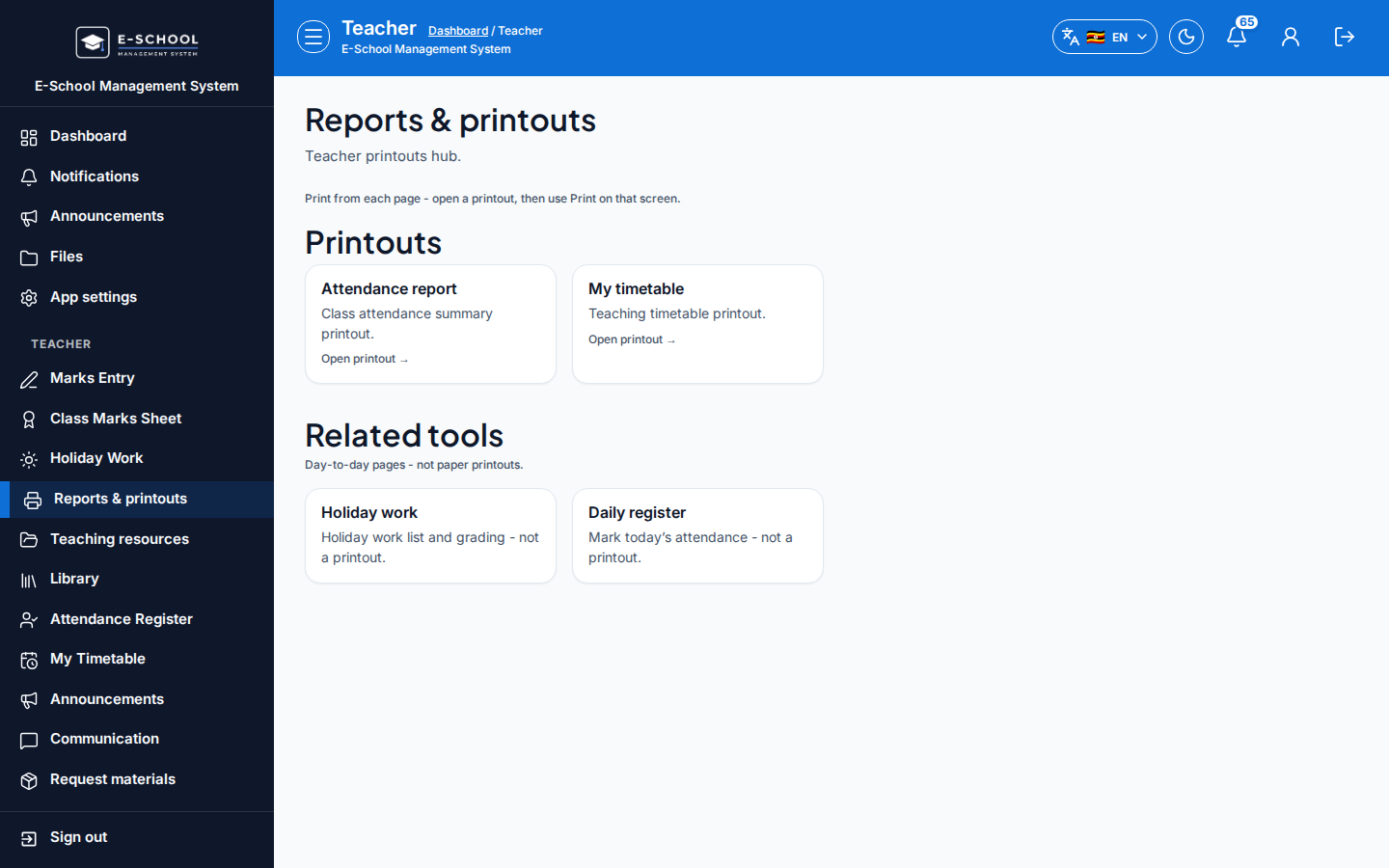
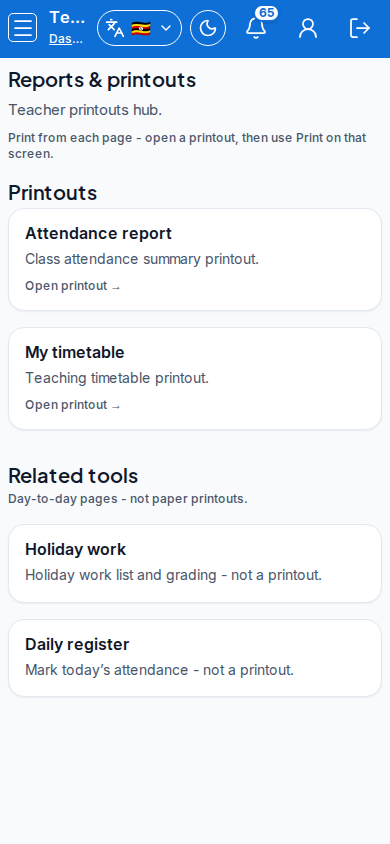
Teacher printout shortcuts: report cards, attendance report and personal timetable, plus related teaching tools.
Who can use this
- TEACHER
- ADMIN
Path
/teacher/reports
Dependencies
- Attendance marks and timetable slots exist for useful output.
- Report cards for assigned classes: Report cards (teacher).
- School-wide academic printouts also remain under admin Printouts.
Screenshot
Steps
- Open Reports & printouts at
/teacher/reportsas TEACHER.
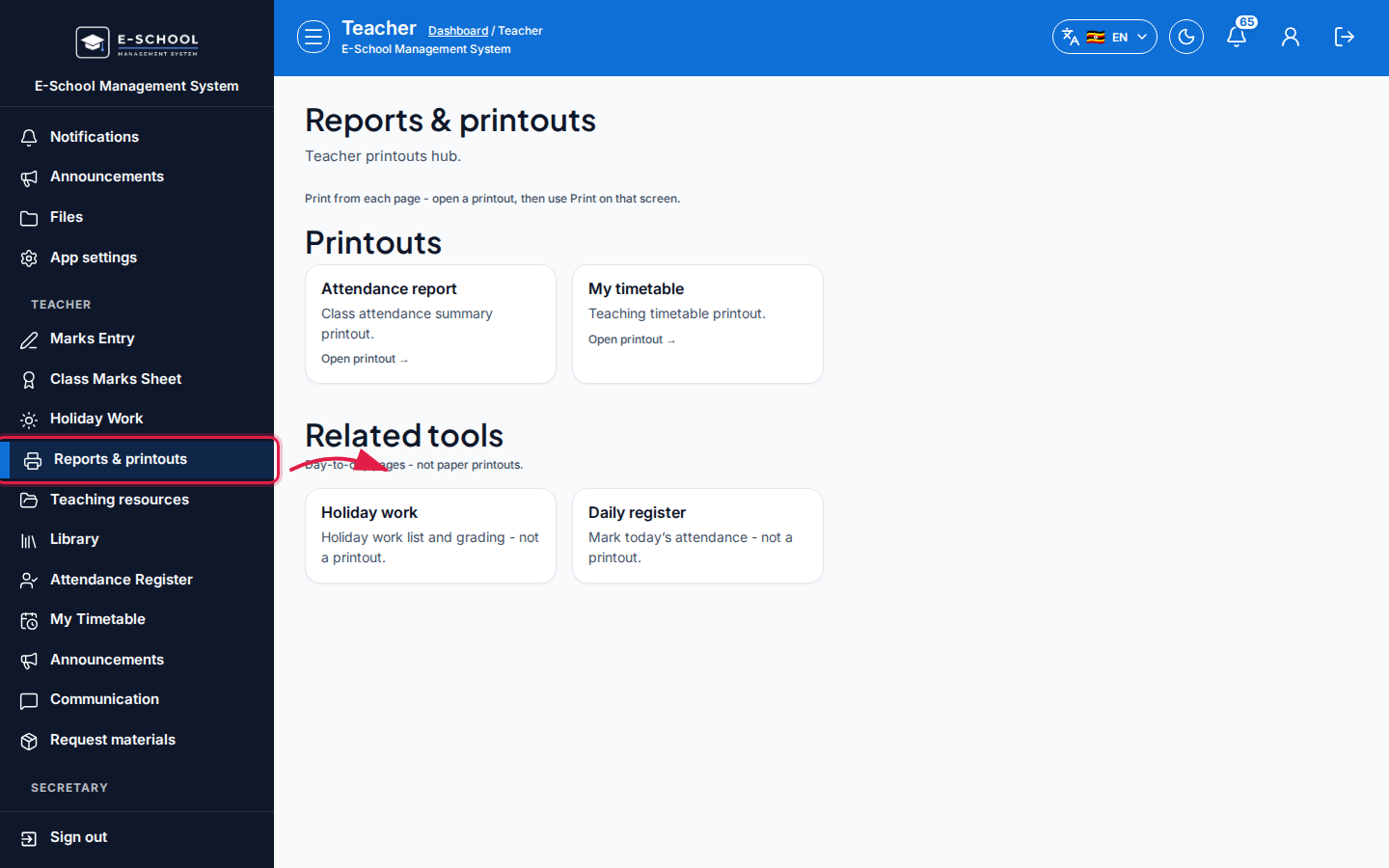 Desktop - focus for step 1
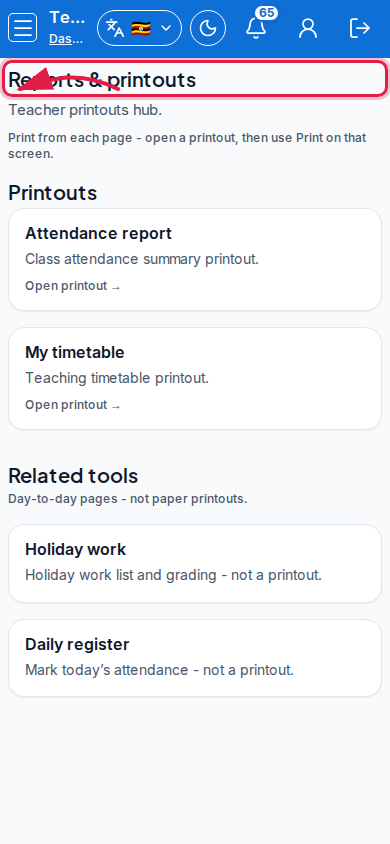 Mobile - focus for step 1
- Open Attendance report or My timetable via Open printout.
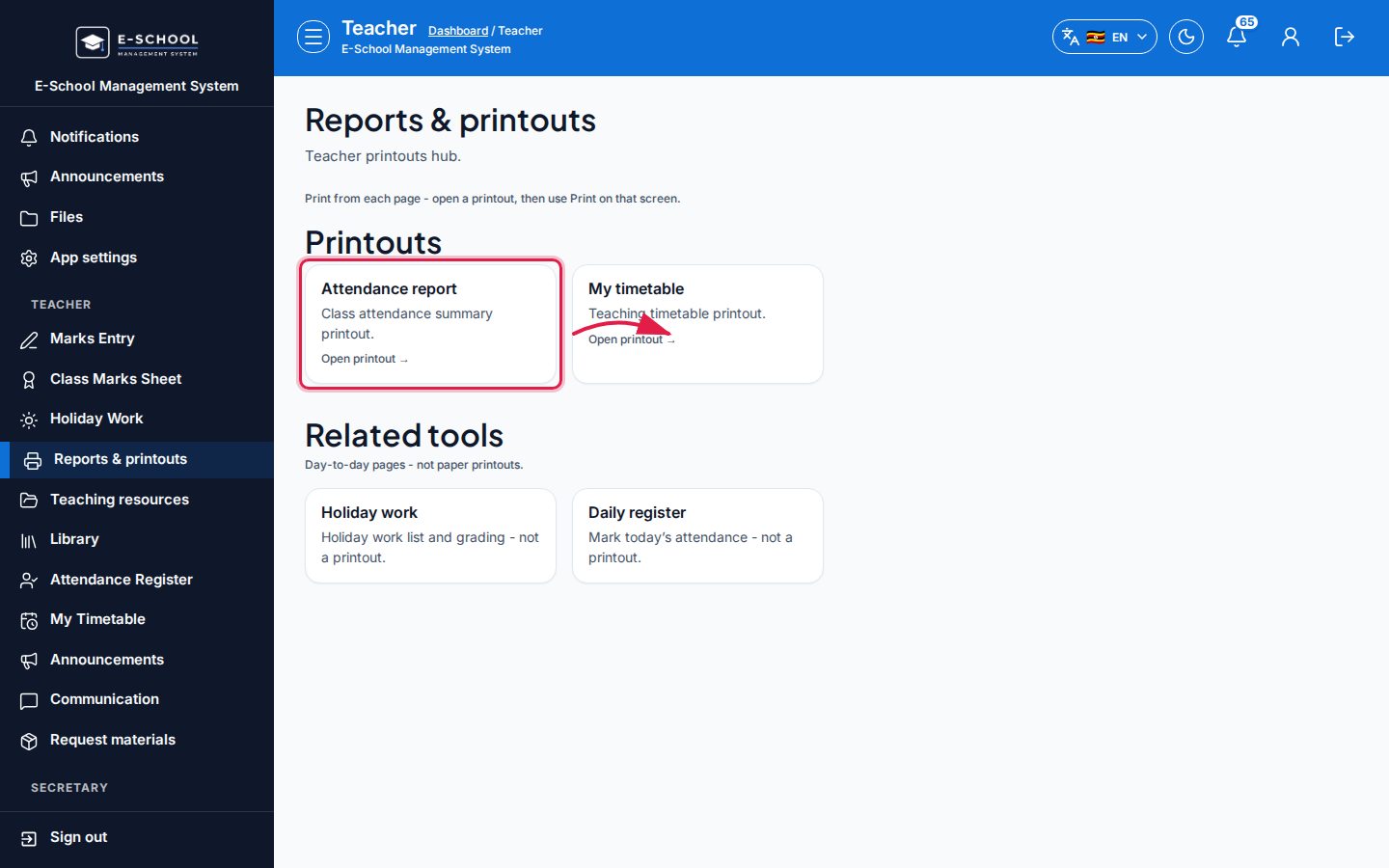 Desktop - focus for step 2
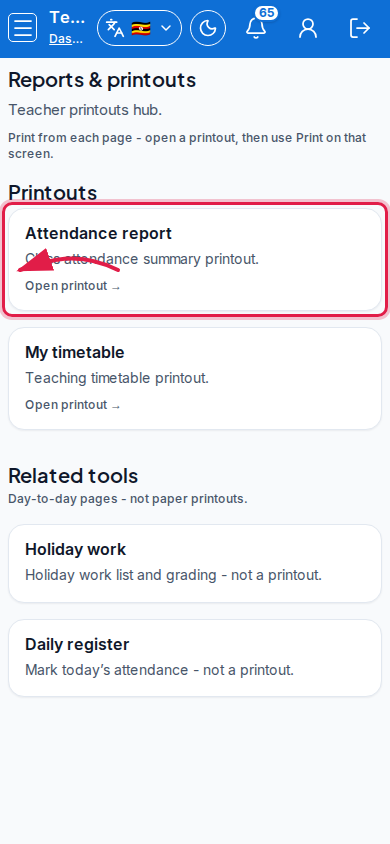 Mobile - focus for step 2
- Apply filters on the target screen, then print/export.
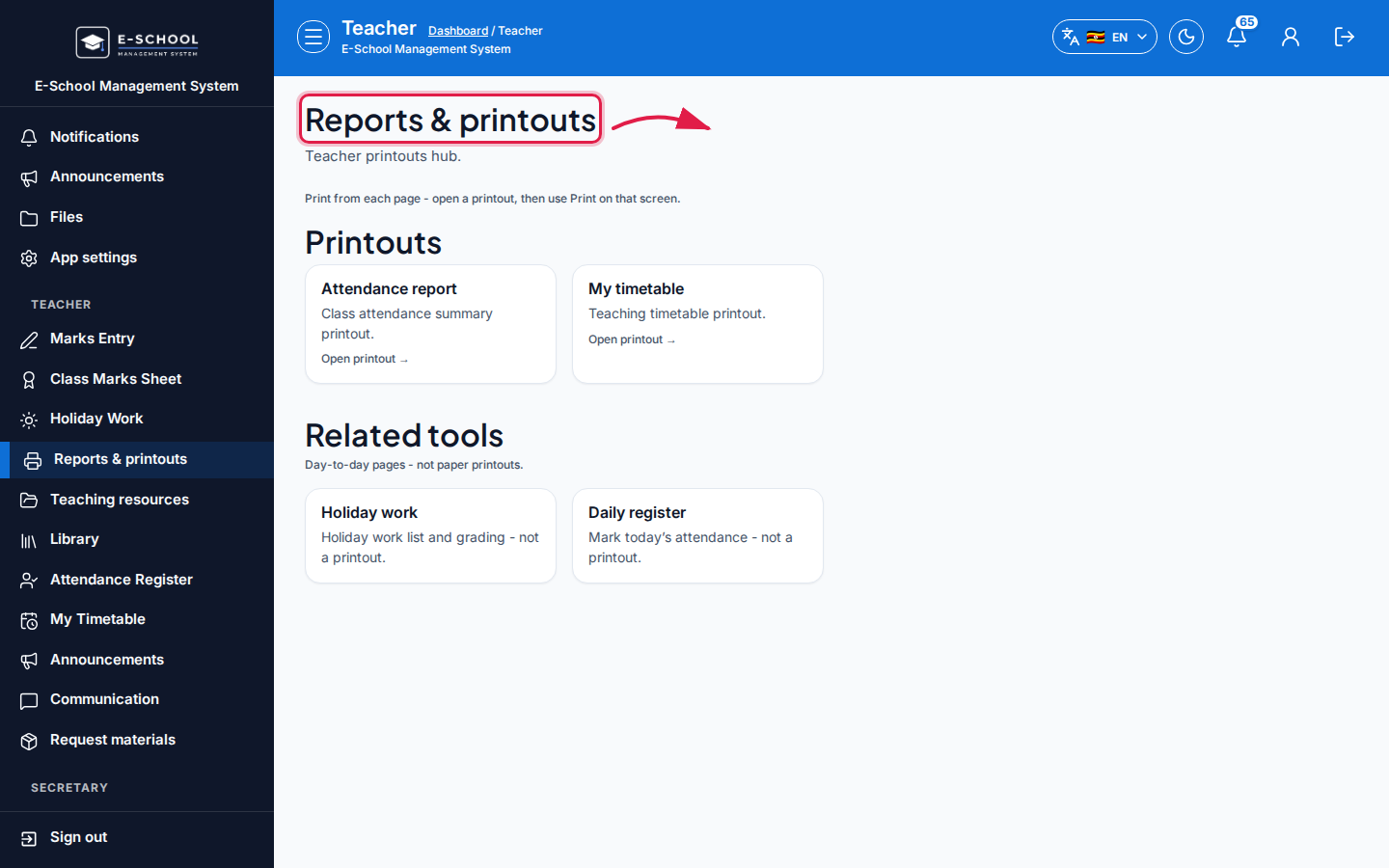 Desktop - focus for step 3
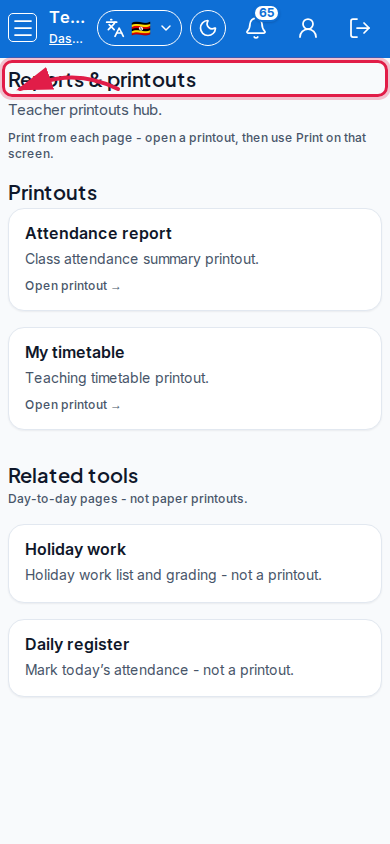 Mobile - focus for step 3
- Use Related links for Holiday work or Daily register when preparing packs.
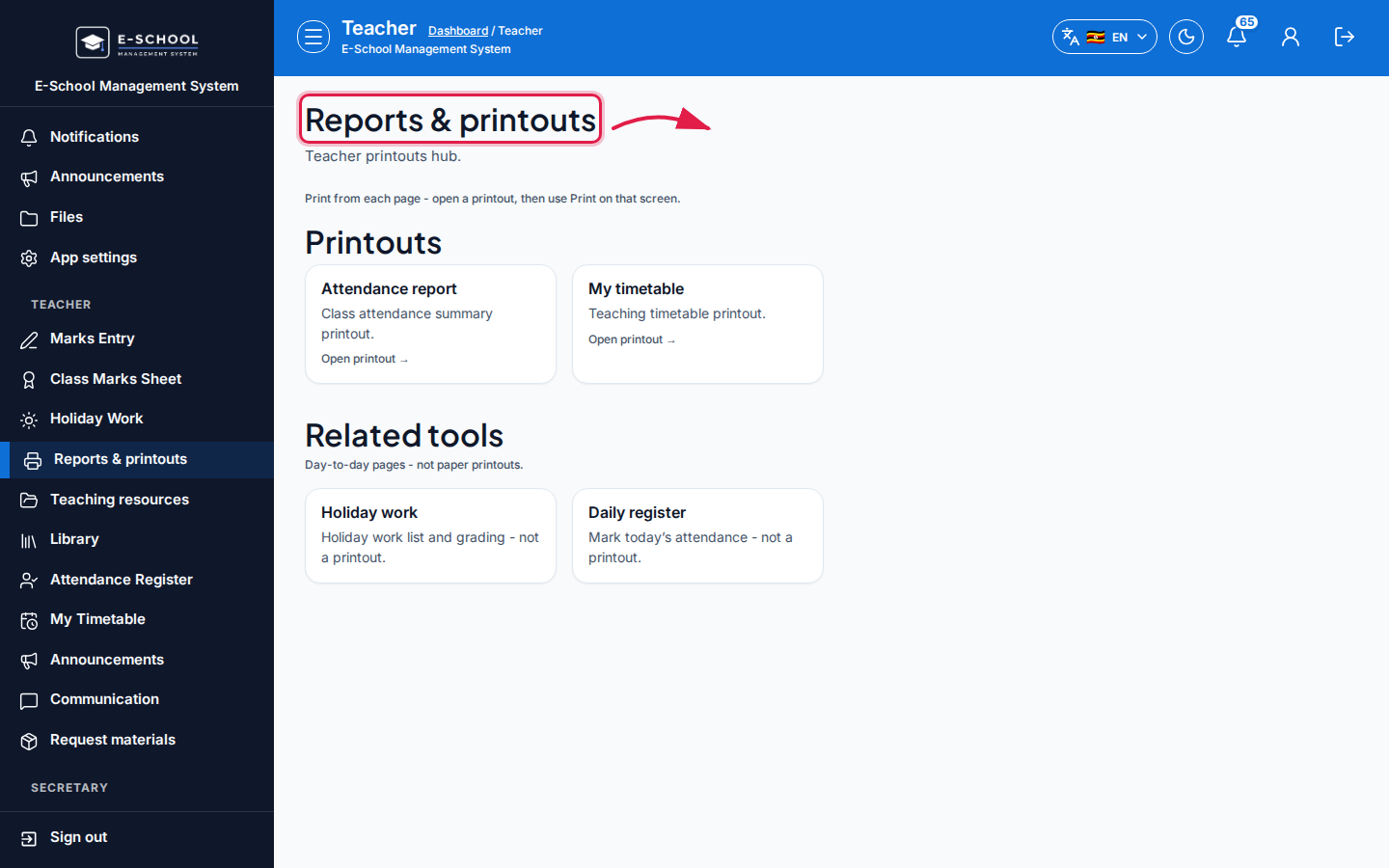 Desktop - focus for step 4
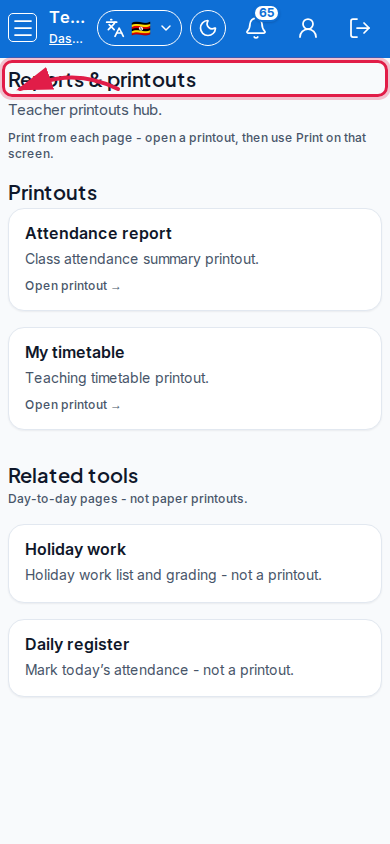 Mobile - focus for step 4
- Ask admin for class lists or scoresheets not listed here.
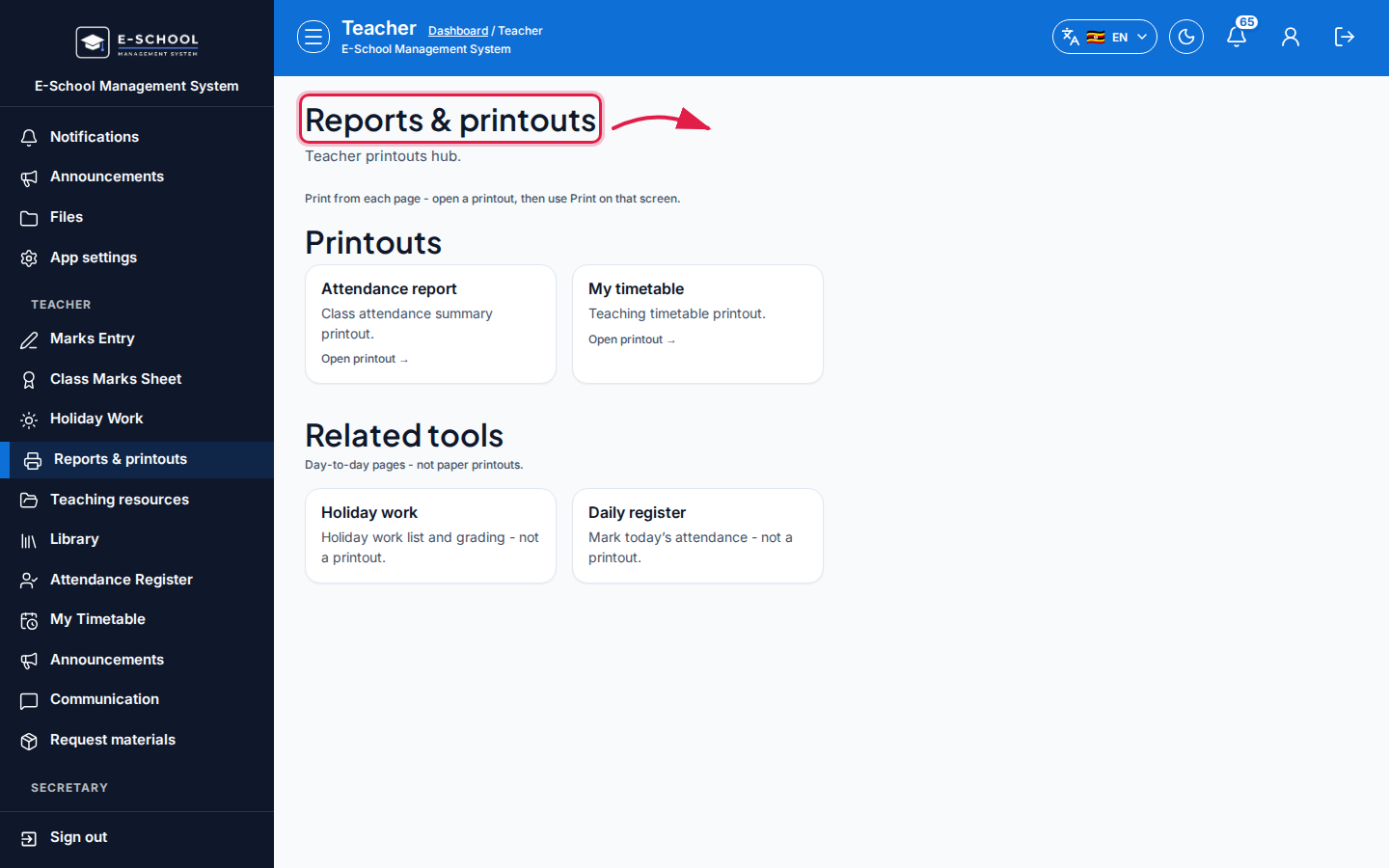 Desktop - focus for step 5
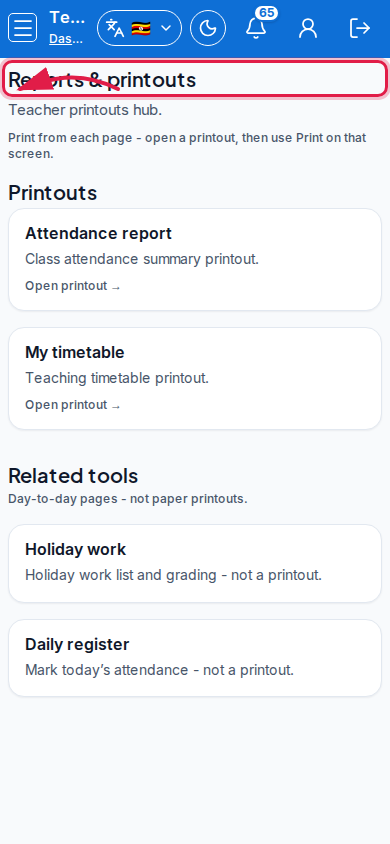 Mobile - focus for step 5
Fields and actions
- Printouts: Attendance report, My timetable
- Related: Holiday work, Daily register
Common mistakes
- Expecting report-card printing here
- Printing attendance before marks were saved