Issued credentials dialog
One-time modal titled Account credentials that shows School ID, User ID, Temporary password, and Recovery codes (eight XXXX-XXXX-XXXX-XXXX values) after a successful create, admit, staff create, or staff password reset. Each credential field has its own Copy control, plus Copy all (includes the recovery-code block) and Copy recovery codes. Secrets cannot be retrieved later without a new reset.
Who can use this
- ADMIN
- SECRETARY
- TEACHER (after a class-scoped password reset from Password help)
Path
(dialog / overlay - opened from a parent screen after create, admit, or reset succeeds)
Dependencies
- Parent flow finished successfully: Add staff on Teachers, Create user on Staff & users, Admit on Admit student wizard / New Admission, or Reset password on Accounts / Password help.
- School settings exist so School ID is assigned (School settings).
Screenshot
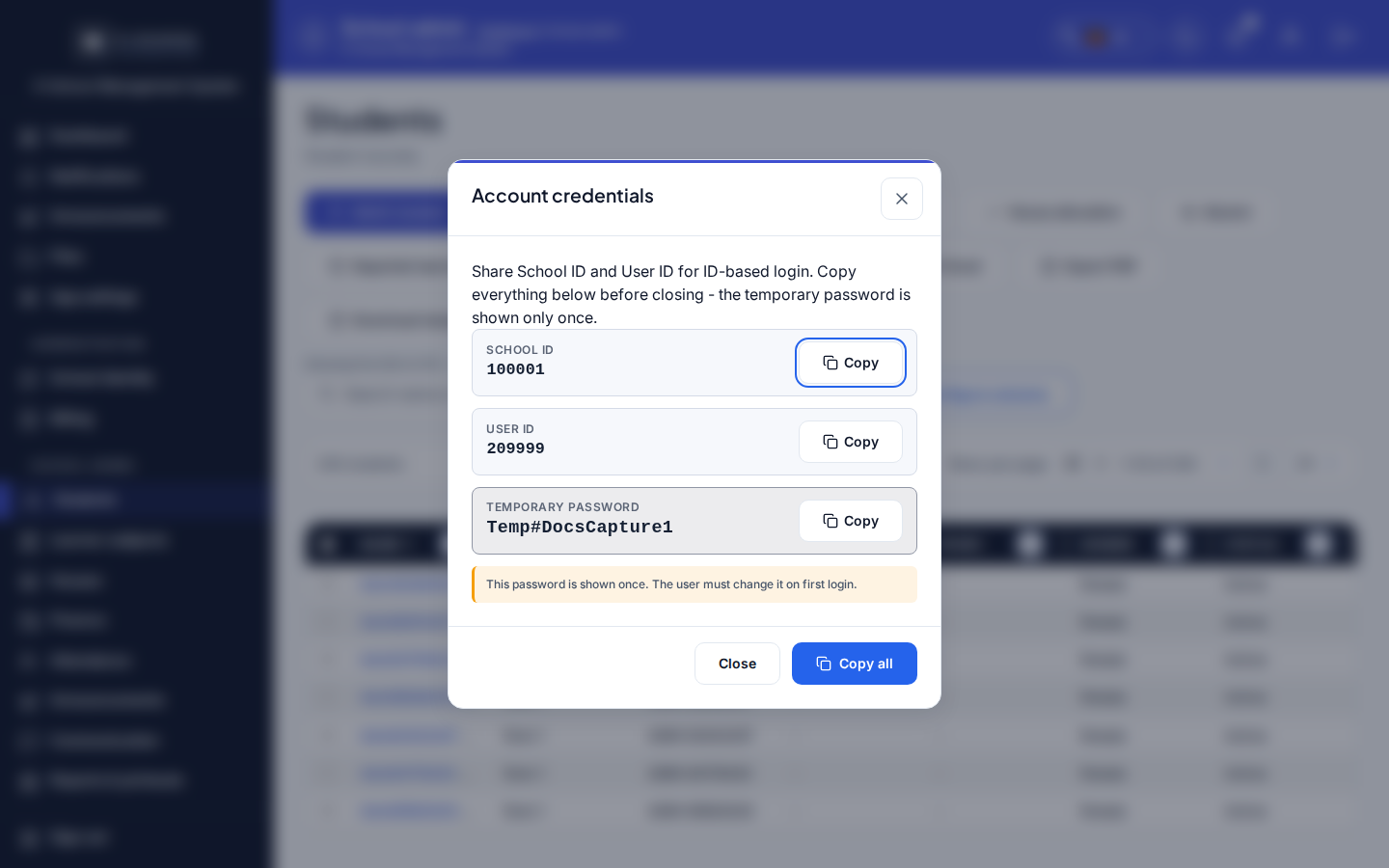
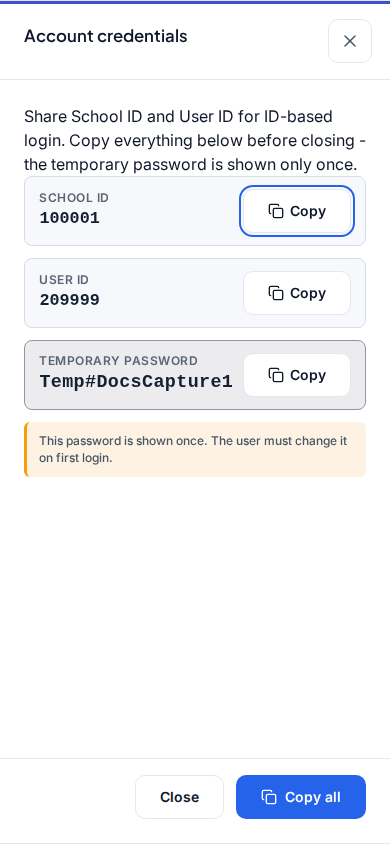
Docs screenshots may show capture-harness sample values (for layout only). In production the modal shows the live School ID, User ID, temporary password, and recovery codes from that API response.
Dialog appears when
Appears immediately after:
- Add staff (Teachers) creates a teacher login, or
- Create user (Staff & users) creates a staff portal user, or
- Admit / Admit student finishes and issues a learner portal login, or
- Staff Reset password (Admin Accounts, Secretary/Teacher Password help) fulfills a forgotten-password case.
Title in the product: Account credentials. Hint text states that School ID and User ID are for ID-based login and that the temporary password and recovery codes are shown only once.
Steps
- Complete Add staff, Create user, admit, or Reset password until save succeeds.
- When Account credentials opens, read School ID, User ID, Temporary password, and the Recovery codes list.
- Click Copy all (or copy a single row / Copy recovery codes) and hand the values over securely. Tell the person to store recovery codes offline for Forgot password.
- Click Close when finished. The person signs in with School ID + User ID and must change the temporary password on first login (First login).
- Do not reopen this dialog later - there is no "show password again" path. Use staff reset or a recovery code instead.
Fields and actions
- School ID (row + Copy)
- User ID (row + Copy)
- Temporary password (highlighted row + Copy)
- Recovery codes (monospace list + Copy recovery codes)
- Hint: secrets are shown once; change password on first login; save recovery codes
- Copy all (every visible credential line including codes)
- Close
Common mistakes
- Closing without recording the temporary password or recovery codes - they cannot be retrieved
- Treating screenshot sample IDs (docs harness) as real school credentials
- Giving Teacher ID, admission number, or email instead of User ID
- Skipping first-login password change after handover
- Ignoring recovery codes so the user has no self-service option later